
Our documentation usually starts as a copy from some other documentation.
Why?
- To preserve some corporate styling guidelines
- Because every documentation introduction looks the same, all you have to change is a project name
- Maybe some other very-important-reason
- In the end - Because we’re lazy
But at some point this (probably doc/docx) document becomes bigger and bigger and we no longer control what is inside and who edited what.
Especially if we have no policy on how it should be stored and this growing problem is just sent over and over via e-mail.
Who has the latest version?
Maybe someone edited it only locally and forgot to share it?
We can get past some of those problems by sharing this document using Google Drive, Microsoft exchange or any other form of live document sharing with changelog.
But is that enough?
I’d say - NO
We can do sooo much better than that.
AsciiDoctor to the rescue!
AsciiDoctor is a great tool that can be used to generate a pretty good looking documentation from text.
You can find their syntax quick reference here and the full documentation here.
Their user manual was actually generated using their tool, so you can see how powerful it is.
You can edit files that use asciidoc format using a number of tools.
A text file like this can be put into our git repository and be versioned like any other source file.
We now see which line was edited by who and why - because we have git messages.
And it is great - for the first draft.
I need some diagrams!
Normally the workflow would looks like that:
- draw them using yEd, Visio or any other diagramming tool.
- export it and save as an image
- insert into the Word document
- we’re done, right?
Right!
But what if someone else needs to change the diagram.
Maybe we only have one Visio license in our company?
And what if something changes in the diagram?
Exporting / inserting over and over again…
Who edited what?
And why?
There has to be some way to generate diagrams from text files and version changes…
PlantUML to the rescue!
PlantUML is a language that can generate diagrams from easy to understand text.
There is a number of editors that can be used to edit/view a file using this format.
And again - we can save our .pu files in the git repository to use all its versioning power.
But is that enough?
I’d say - NO
We can still do something to make this process better.
Automate documentation building
So far so good - both our pretty descriptions and diagrams can be generated from ugly text files which are already stored in git.
Now we should include building documentation in our CI/CD pipeline, so our documentation is always up to date.
How to do that?
You can use AsciiDoctor maven plugins that are available here
Those plugins could have a little bit better API and/or documentation, so it took me a while to create a simple pom.xml that satisfies my needs.
That said - I created a working example and I’m happy to share it with you - you can find it here.
Maven configuration
Please refer to this repository for the whole file.
Below you can see the most important config
<profiles>
        <profile>
            <id>generate-html-docs</id> <!-- NOT enabled by default -->
            <build>
                <plugins>
                    <plugin>
                        <groupId>org.asciidoctor</groupId>
                        <artifactId>asciidoctor-maven-plugin</artifactId>
                        <version>${asciidoctor.maven.plugin.version}</version>
                        <dependencies>
                           (...)
                        </dependencies>
                        <configuration>
                            <sourceDirectory>src/docs</sourceDirectory>
                            <sourceDocumentName>docs.adoc</sourceDocumentName>
                            <requires>
                                <require>asciidoctor-diagram</require> <!-- without that diagrams will not be generated-->
                            </requires>
                        </configuration>
                        <executions>
                            <execution>
                                <id>asciidoc-to-html</id>
                                <phase>generate-resources</phase>
                                <goals>
                                    <goal>process-asciidoc</goal>
                                </goals>
                                <configuration>
                                    <backend>html5</backend>
                                    <sourceHighlighter>coderay</sourceHighlighter>
                                    <attributes>
                                        <imagesdir>./images</imagesdir> <!-- again, needed by diagrams -->
                                        <toc>left</toc>
                                        <icons>font</icons>
                                        <sectanchors>true</sectanchors>
                                        <!-- what is below will generate header/footer with version info -->
                                        <idprefix />
                                        <idseparator>-</idseparator>
                                        <project-version>${project.version}</project-version>
                                        <revnumber>${project.version}</revnumber>
                                        <revdate>${maven.build.timestamp}</revdate>
                                        <organization>${project.organization.name}</organization>
                                    </attributes>
                                </configuration>
                            </execution>
                        </executions>
                    </plugin>
                </plugins>
            </build>
        </profile>
    </profiles>
So when our project builds normally the documentation will NOT be built by default.
In order to build it use generate-html-docs profile.
Project structure
parent
documentation
rest-app
parent
just a parent of a multi-module project
wanted to make a multi-module project, because storing documentation in the same module as your code is just a bad idea.
same repository - of course, but not the same module.
documentation
you can find docs.adoc file in src/docs folder.
This is the root of our documentation.
AsciiDoc format lets us separate our document into separate files and I’ve chosen to have one root document that will join all documents that are in sections folder.
That way all my sections are relatively small and manageable.
It’s the same rule that we use in our code, so every developer should be happy with that approach :)
There is also a folder for images called images (surprise, huh?) and every image placed in there can be imported into our documentation.
Last, but not least, is the diagrams folder. You can place your PlantUml (.pu) files there.
Diagrams stored there will be rendered and placed in the target folder alongside other images.
With all that in place you have to build the project.
You can do that using mvn clean package with generate-html-docs profile selected.
Once that is done - you can find your docs here: documenting-project/documentation/target/generated-docs/docs.html.
It’s a normal web page, so if you want to you can add your custom CSS files as described here.
Using this - you can preserve your corporate guidelines.
Even more - once you build a CSS for your company - you don’t have to care about them even again.
They will just be automatically applied and no one can mess with that by accident (unlike Word styles)
You could also generate a PDF file using maven pdf plugin, but as you can see it’s still in alpha and it has its problems.
I’ll write a post how to configure it some other time.
rest-app
contains an extremely simple WebApp, which will not be discussed here
long story short - it’s a base for a Swagger tutorial, which will be covered in a different post
important AsciiDoc syntax
Again, for a guide please refer here or here.
Below you can find some quick tips.
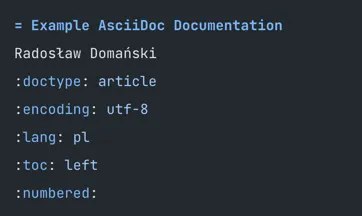
Start your document with something like that. It the title and basic structure definition:
= Example AsciiDoc Documentation
Radosław Domański
:doctype: article
:encoding: utf-8
:lang: pl
:toc: left
:numbered:
This is how you include a document inside another document.
include::sections/section1.adoc[]This is how you insert a new page mark (used only by PDF generation)
<<<Here you can see how to import a diagram from an external file
[plantuml,example,png,align="center"]
----
include::../diagrams/example.pu[]
----
Here you can see how to create a diagram inside this file.
It’s possible, but I prefer importing files than editing them here…
[plantuml,example,png,align="center"]
----
@startuml

title example diagram

participant "very long client name" as client
participant "very long server name" as server

client -> server : sending a file
activate server
server -> server : complicated \n processing
client <- server : sending a response
deactivate server

@enduml
----
Last, but not least, you can see how to insert a photo from what I could gather - photos should not have a path added, because they are all copied to the image folder that is configured in pom.
It has to work like that, because diagrams are rendered to photos and maven plugin needs this directory defined.
image::asciidoc-logo.png[]Wrapping up
Hopefully by now you know how to configure your project to use automatically generated documentation.
As you can see it’s not that hard and believe me - it pays off in the long run.
Sooo… That’s it for today.
see you in the next post and until then - happy coding!
resources:
GitHub repository for this blog post
asciidoc - main page
asciidoc - quick reference
asciidoc - user manual
asciidoc - css configuration
asciidoc - editors
asciidoctorj - maven plugins
plantuml - main page
plantuml - user manual
plantuml - editors